🚀 Welcome to Alt-D Smart Fix
Let's get you set up in just 2 minutes!
⌨️ Set Up Your Keyboard Shortcut
Configure Alt+D (or your preferred shortcut) to trigger text fixes.
Open Chrome Extensions Shortcuts
Click the button below to open Chrome's keyboard shortcuts settings:
Open Keyboard ShortcutsOr go manually: chrome://extensions/shortcuts
Find "Alt-D Smart Fix" in the list
Scroll down until you see the Alt-D extension.
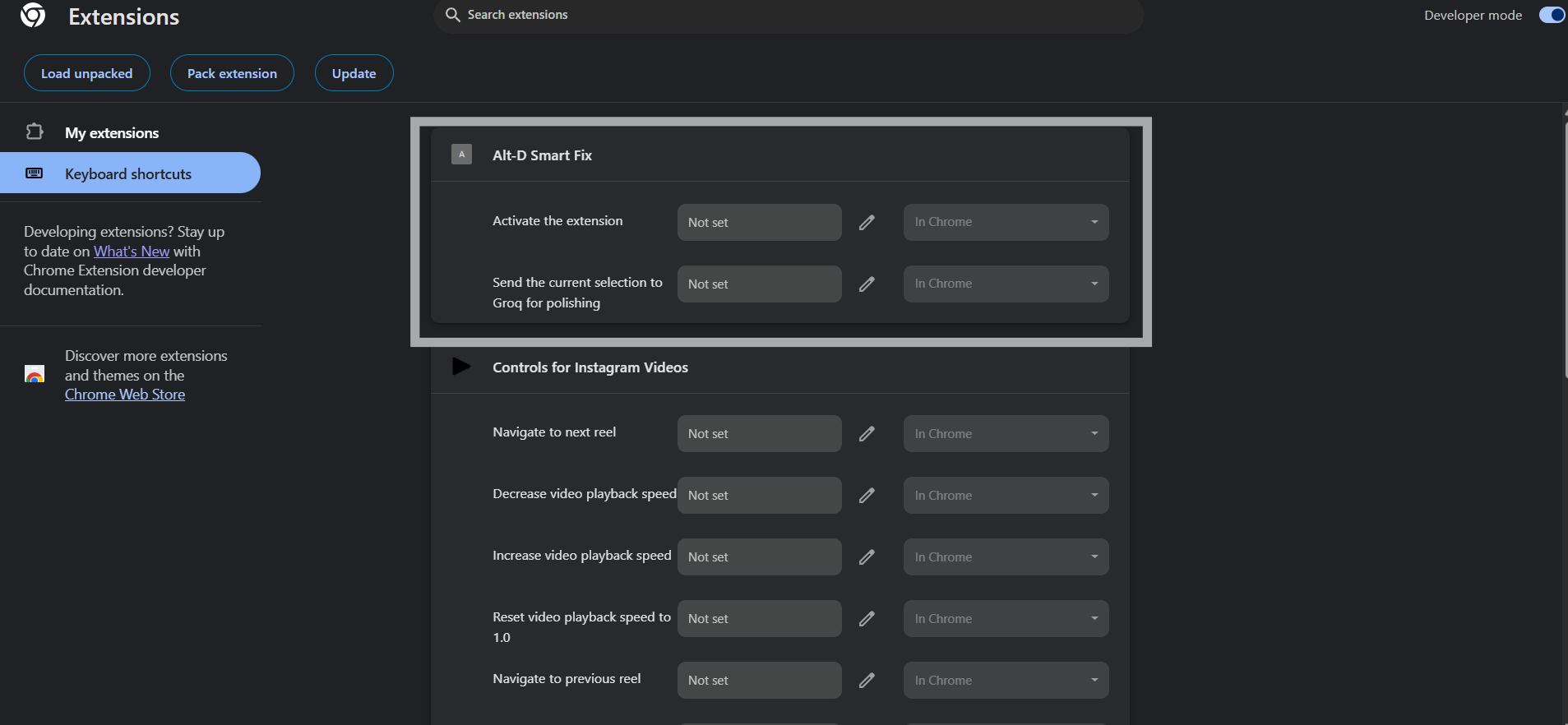
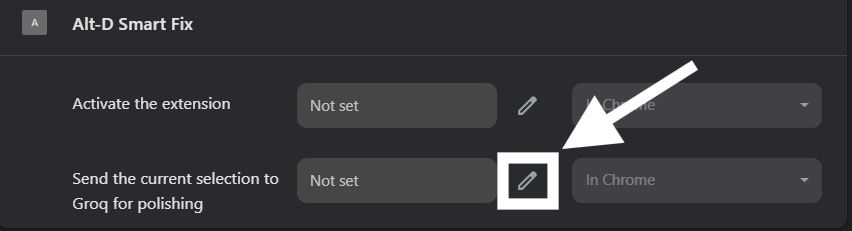
Click the pencil icon and press Alt+D
Click the edit button next to "Fix selected text", then press Alt + D on your keyboard.
✅ Shortcut Tips
- Mac users: Use Option + D instead of Alt+D
- Conflict? Choose any other shortcut like Ctrl + Shift + D
- The shortcut works in any text field on any website!
🔑 Get Your Free Groq API Key
Groq provides fast, free AI models. Let's get your API key!
🎉 Good News!
Groq offers free API access with generous rate limits. No credit card required!
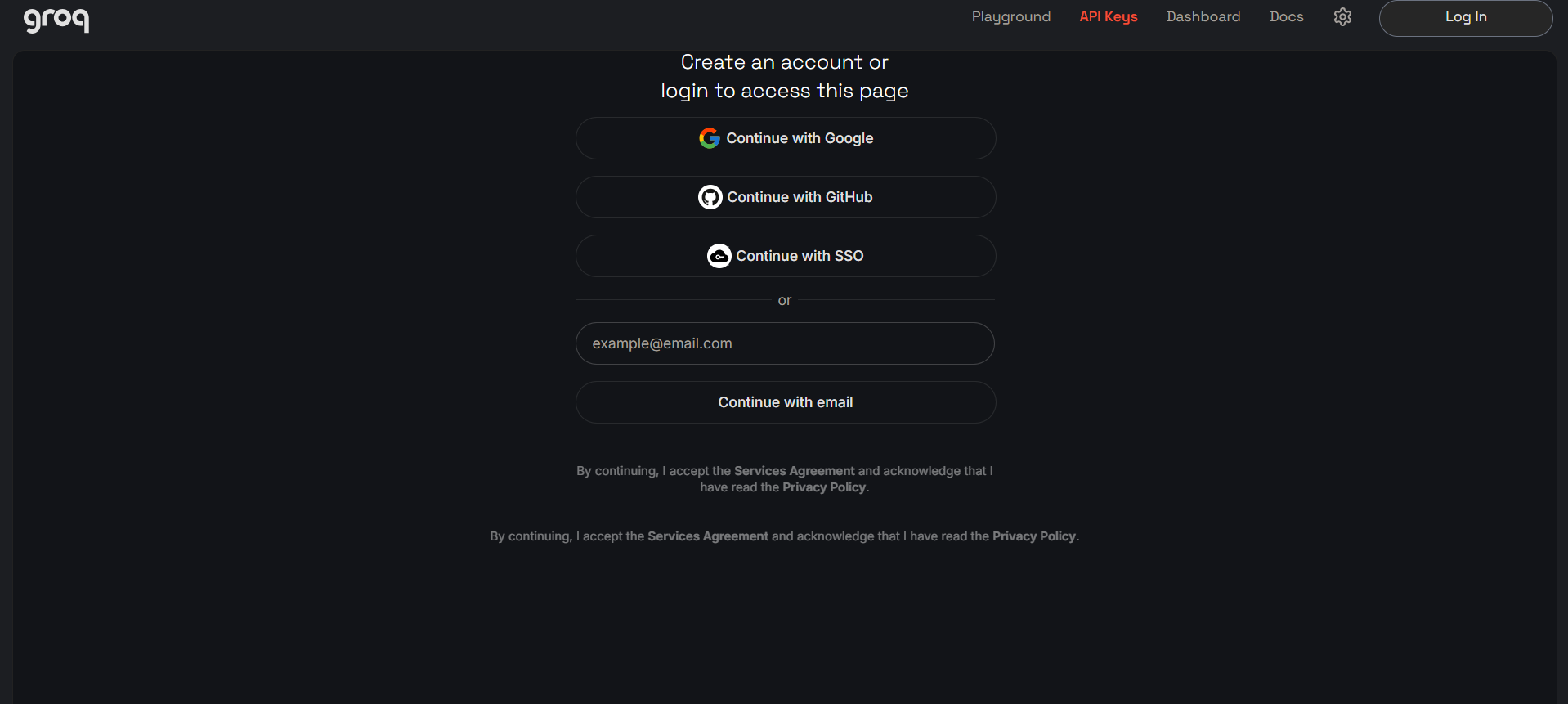
Sign up or Log in
Create a free account using Google, GitHub, or email.
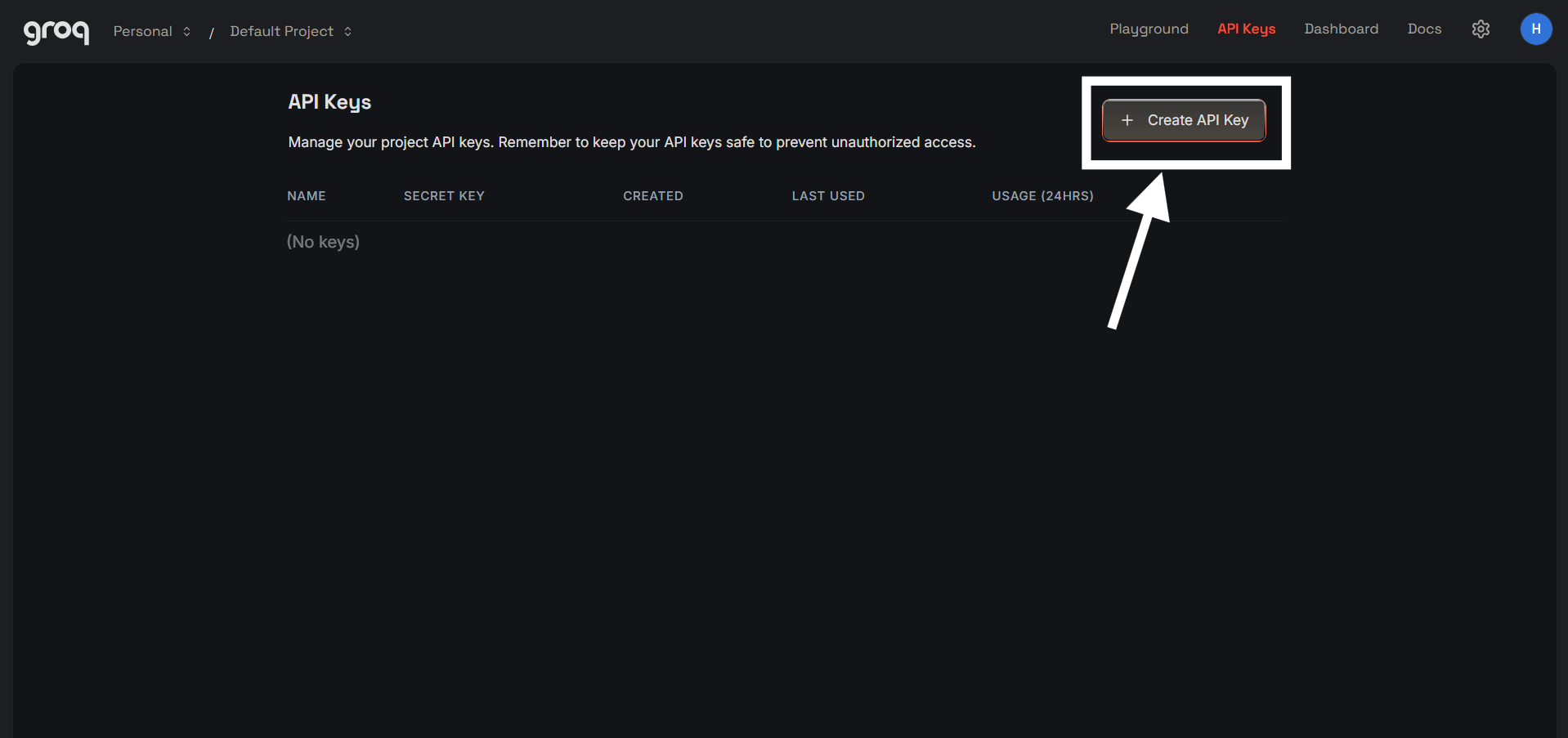
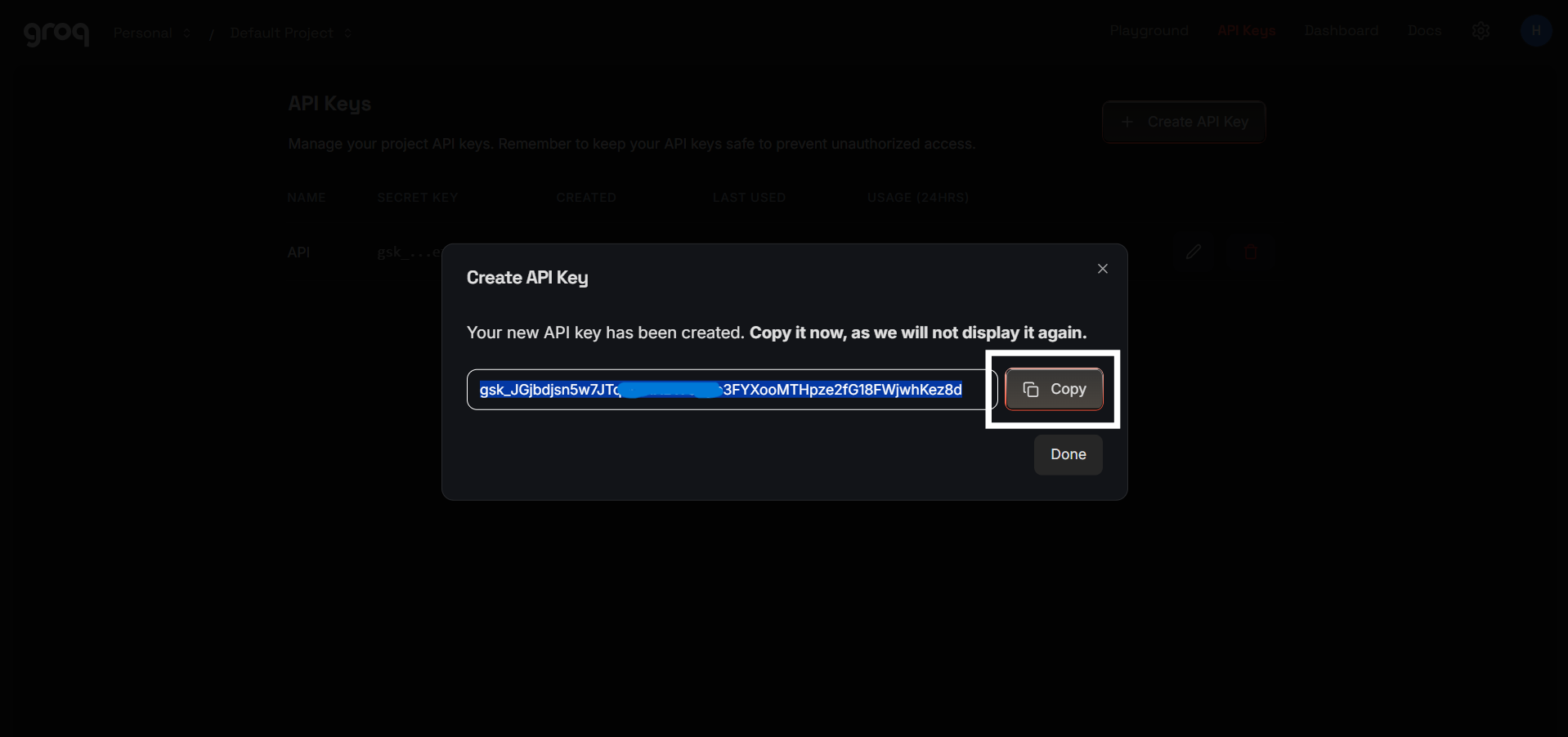
Create a new API Key
Click "Create API Key" button and give it a name like "Alt-D Extension".
Copy your API Key
Your key will start with gsk_. Click the copy button to copy it.
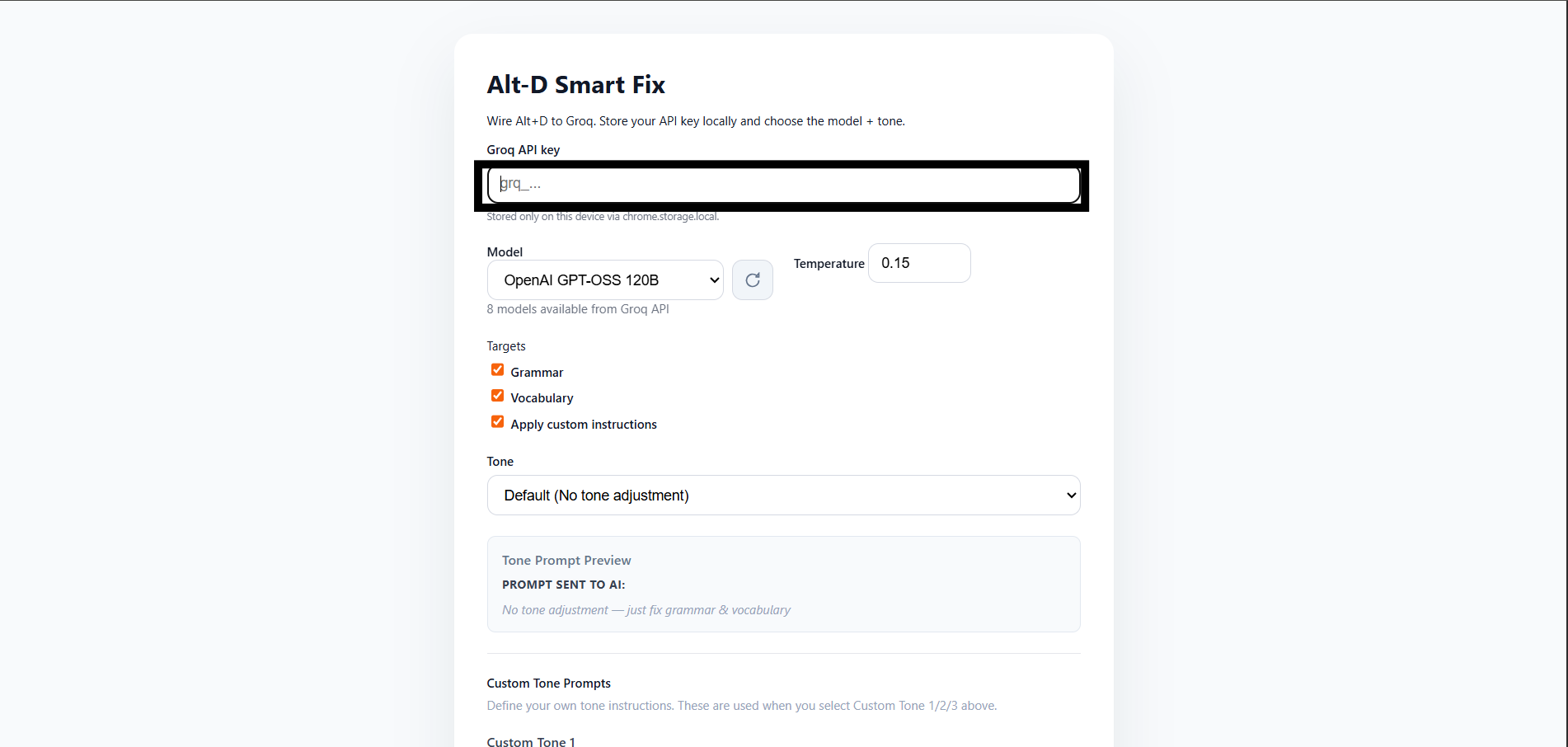
Paste into Alt-D Settings
Open Alt-D settings (right-click the extension icon → Options) and paste your API key.
✨ Test Your Setup
Let's make sure everything works!
Try it in the test box below
Type or paste some text with errors, select it, then press Alt + D:
Select the text above and press your keyboard shortcut!
How it works
🎉 You're all set!
Alt-D now works on any website. Here are some tips:
- Works everywhere: Gmail, Twitter, LinkedIn, Google Docs, and more!
- Change tone: Go to settings to switch between formal, casual, friendly, etc.
- Disable temporarily: Click the minimize button on the floating panel to disable for a page, site, or time period.